
Finding your best-fit schools in College Search
Narrow the list with filters, check each school’s academics, and use the Athletics tab to see where you would actually fit.
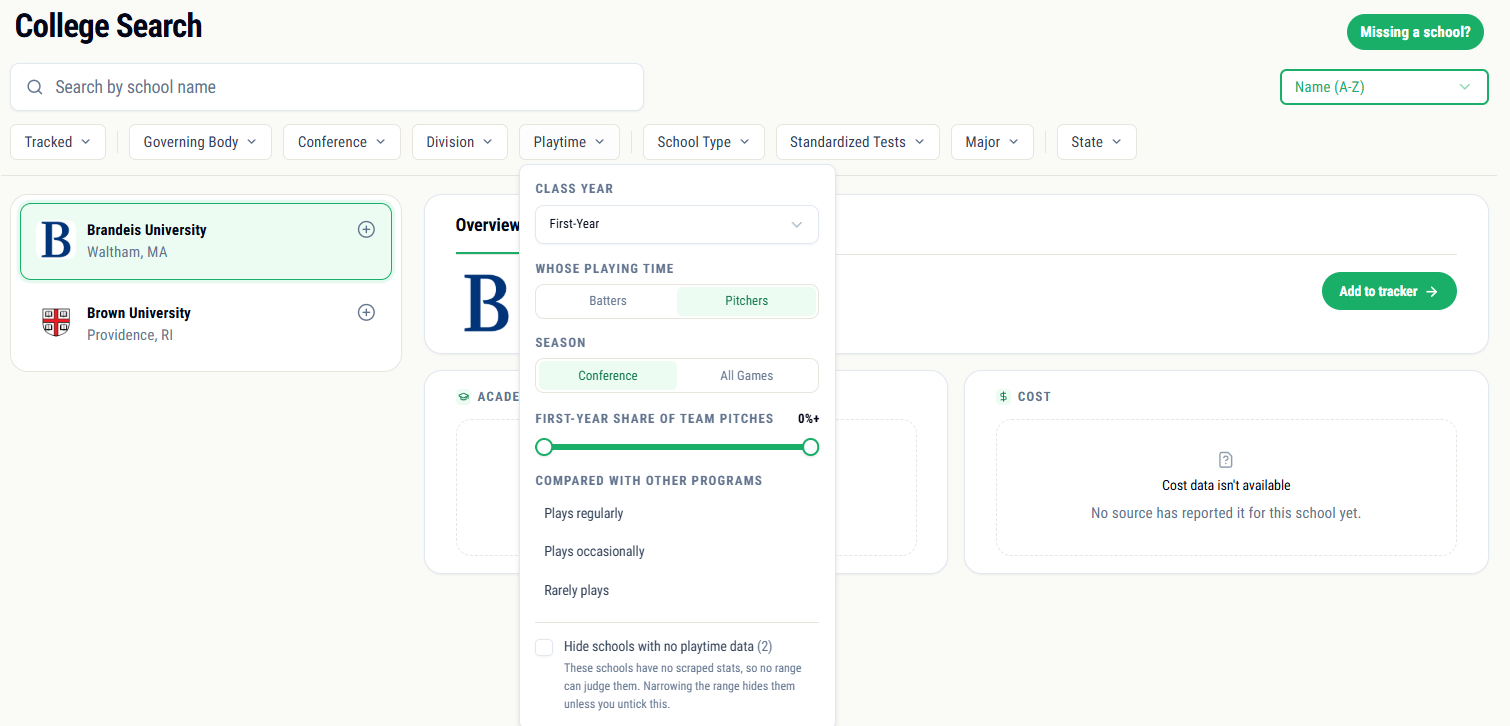
The best-fit school is one where you’d be happy academically and where you’d realistically get on the field. College Search has the data for both, but some of the most useful parts aren’t obvious at first. Start broad, then narrow.
Step 1Start with the main filters
The filter bar sits under the search box. Use it to cut the list down to schools that could fit before you look at any one program closely.
- 1Level: Division, Conference and Governing Body. Be honest about where you’d compete, and ask your coach if you’re not sure.
- 2Location: State, for the places you’d be happy living.
- 3Academics: School Type, Major and Standardized Tests, so every school on the list fits your plans off the field too.
- 4Tracked: show only the schools you already track, or only the ones you don’t.
In sports with enough game stats, the Playtime filter adds one more question: at each program, how much of the team’s playing time goes to players in your class year, compared with other programs? What counts as playing time depends on the sport, so your sport’s guide explains how to read it.
Step 2Check the Overview tab
Open a school to see its Overview: acceptance rate, the SAT and ACT middle 50%, undergrad size, graduation and return rates, the estimated yearly cost, and a search to check whether your major is offered.
Step 3Dig into the Athletics tab
The Athletics tab is where you see what the program actually looks like: how it has done in its conference, its standings and schedule, and the Roster.
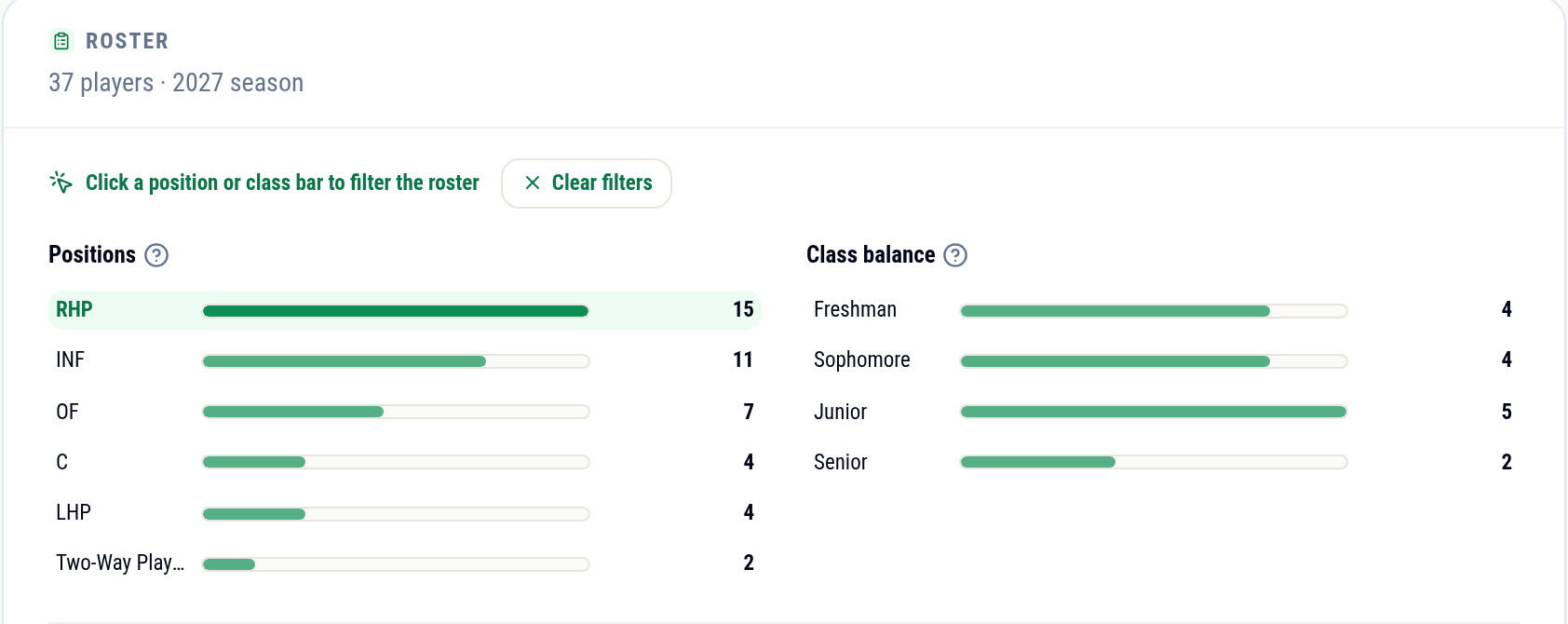
In the Roster card, two charts tell you the most about your chances:
- 1Positions: how many players are listed at each position this season. That’s your competition if you joined.
- 2Class balance: how the roster splits across class years. A senior-heavy roster means spots opening soon; a freshman-heavy one means you’d be competing with your own class.
Both charts are clickable. Click a bar to filter the roster table below to just those players, click more positions to add them, and combine a position with a class year, for example to see only the juniors at your position. Clear filters puts everything back.
Below the charts, How they got here shows whether players arrived out of high school or transferred in. In sports with Playtime data you’ll also see each class’s share of the team’s playing time at this school.
Step 4Check the Coaches tab
The Coaches tab lists the program’s full coaching staff with their emails, so you can email the whole staff, not just the head coach.
Step 5Find your sport
Every sport is different: the positions, the stats programs track and what counts as playing time all change from one sport to the next. Each sport’s guide goes deeper into its stats, including the ones RecruitMax calculates from game data for you, like Playtime. Pick yours:
More sports will be added here as they come to RecruitMax.