
Your first week on RecruitMax
Get your profile ready for recruiting questionnaires, build a school list that fits, send your first emails, and keep going from your dashboard.
Your first week is about getting set up: a profile complete enough to fill out school questionnaires for you, a list of schools worth your time, and your first emails to their coaches.
Step 1Finish your profile for questionnaires
Most college programs ask recruits to fill out an online recruiting questionnaire before a coach takes a serious look. RecruitMax Autofill, our Chrome extension, fills those forms in from your profile, so every field you complete here is one you never type again, for every school on your list.
- 1Personal Information: your contact details, home address and high school. Nearly every questionnaire opens with these.
- 2Coursework and Test Scores: transcripts, GPA, class rank, AP/IB classes, honors and SAT/ACT scores. Set “HS Preferred GPA for Recruiting Questionnaires” to the GPA you want schools to see.
- 3Family Relationships: add a parent or guardian. Most questionnaires ask for their name, email and phone number.
- 4Athletic Profile: your positions, stats from your most recent season, and at least one recruiting video.
- 5Coaches: your high school and club coaches. Questionnaires often ask for them as references.
Step 2Build a list of 15–25 schools
A good list mixes reach, target and safer programs. Every school on it should be one where you would be happy academically, and where you would realistically get on the field.
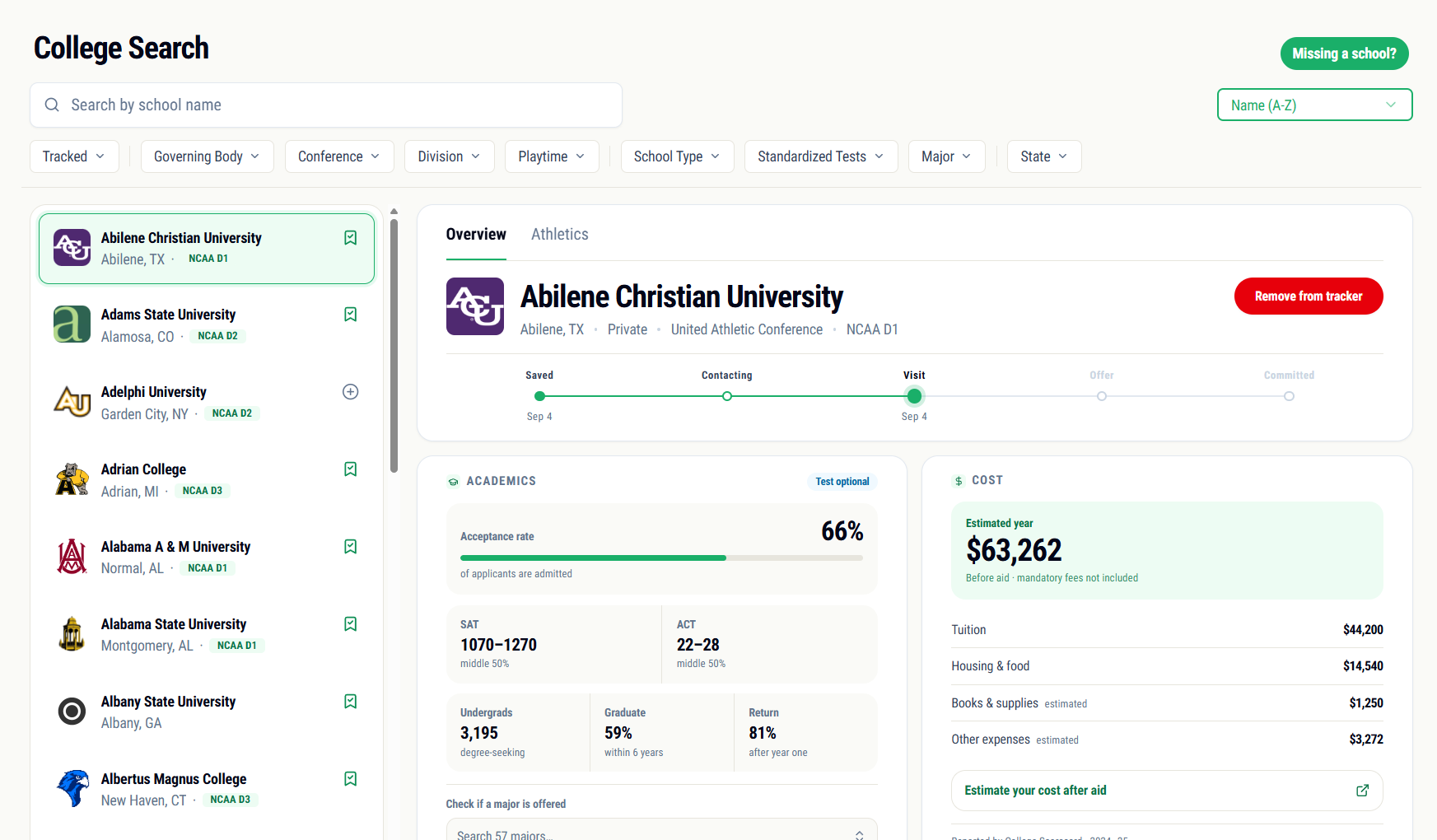
Use College Search filters to match your level (Division and Conference), academics (School Type and Major) and location (State). Then open each school and check:
- 1Playing time: the Playtime band (Plays regularly, Plays occasionally, Rarely plays) shows how often players in your class year get on the field compared with other programs.
- 2Roster: on the Athletics tab, Positions and Class balance show how crowded your position is and how the roster is spread across class years.
- 3Academics: acceptance rate, the SAT and ACT middle 50%, and whether your major is offered, all on the Overview tab.
- 4Cost: in-state and out-of-state cost, also on the Overview tab.
Once you have a shortlist, compare schools side by side to see which ones fit you best, then add them to your College Tracker.
Step 3Send your first emails
RecruitMax sends coach emails from your own Gmail account, so they land in your Sent folder and coaches reply straight to you. Open Coach Communication and click Connect Gmail to get started.
- 1Pick five schools from your list to start with. You don’t need to email all of them in your first week.
- 2Click Compose, choose the school and coach, and write your intro. Personalize the first line for each program; this guide shows what to include.
- 3Send it. Replies sync in from Gmail automatically, and conversations where a coach wrote back show up under Needs reply.
- 4Use Waiting on coach to see who hasn’t answered yet, and Not contacted yet for schools you still need to email.
Step 4Keep it going from your dashboard
After your first week, the Dashboard is your home base. Its Game plan card lists what to do this week, next week and later this month, and fills itself in from what you’ve done, for example:
- 1Reach out to a school you saved a week ago but haven’t emailed yet.
- 2Reply to a coach who’s waiting on you, or follow up with one who hasn’t answered.
- 3Connect Gmail, if you haven’t yet, so your coach emails are tracked.
Check tasks off as you finish them, and add your own with Add task.